How to use the visualizer
Everything on this page happens at the visualizer: pick notes, see them across the whole neck, identify the chords and scales they form, overlay fingering shapes, and export the result as an image. This guide walks through each tool.
The visualizer at a glance
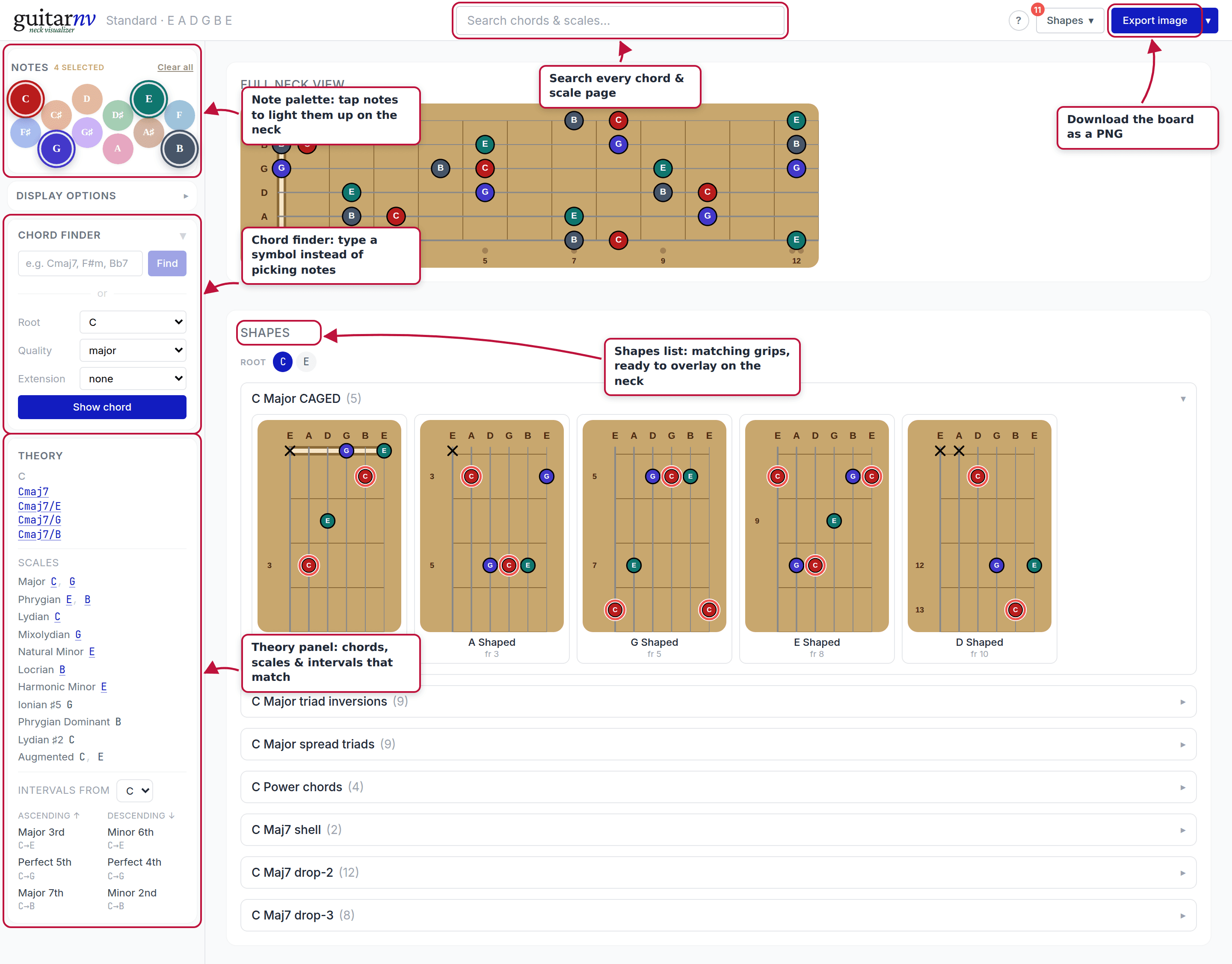
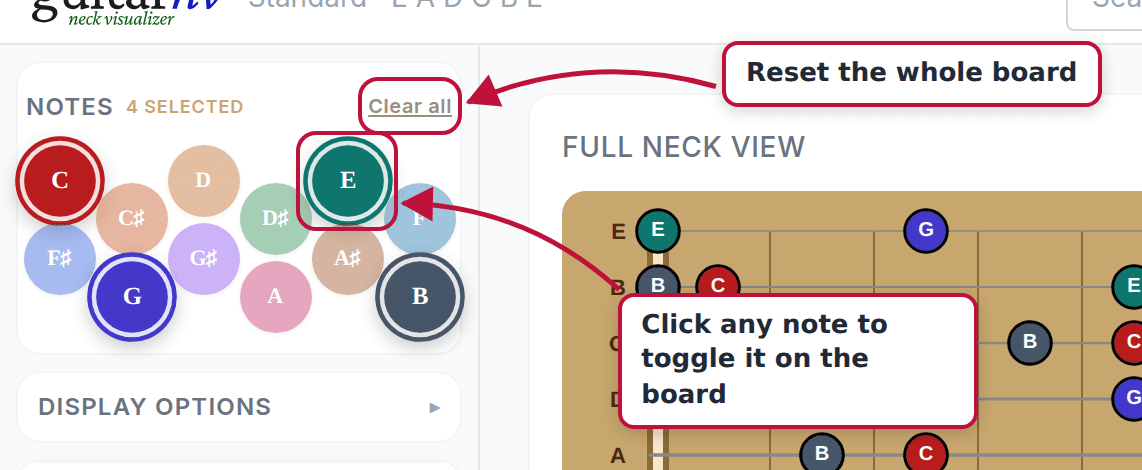
The screen has three areas. The sidebar on the left holds your input tools (note palette, display options, chord finder) and the theory panel. The main area shows the full neck view with the shapes list below it — every fingering shape that matches your selected notes, ready to overlay. The top bar has search, a compact shapes menu, and image export. On a phone the sidebar stacks above the fretboard instead.
The note palette
The palette holds the 12 chromatic notes. Click any of them to light that note up everywhere it occurs on the fretboard; click again to remove it. Each note keeps one color everywhere (palette, fretboard, and export) so you can follow a note across positions at a glance. Clear all resets the board.
The full neck view
The full neck view shows every selected note from the open strings up to the 12th fret (you can extend this to 24 in display options). Standard tuning, low E at the bottom, just like looking down at your own guitar. Inlay markers at frets 3, 5, 7, 9, and 12 help you keep your bearings.
To work in one playing position instead of scanning the whole neck, pick a grip from the shapes list just below — each shape is drawn as its own 4–5 fret window, the width of one position.
The shapes list (chord grips and scale boxes)
Lighting up notes shows you where they live; the Shapes panel below the full neck shows you how to grab them. Whenever your selected notes form a chord it lists every matching fingering shape — CAGED forms, triad inversions, spread voicings, drop-2 and drop-3 voicings, seventh chords, and more — as small clickable chord-box diagrams. Shapes are grouped into one collapsible section per shape family, most common families on top; inside a section they’re grouped by string set and run from the nut up the neck. When the notes spell more than one chord (A · C · E · G reads as both Am7 and C6), root pills above the list pick which interpretation you’re browsing.
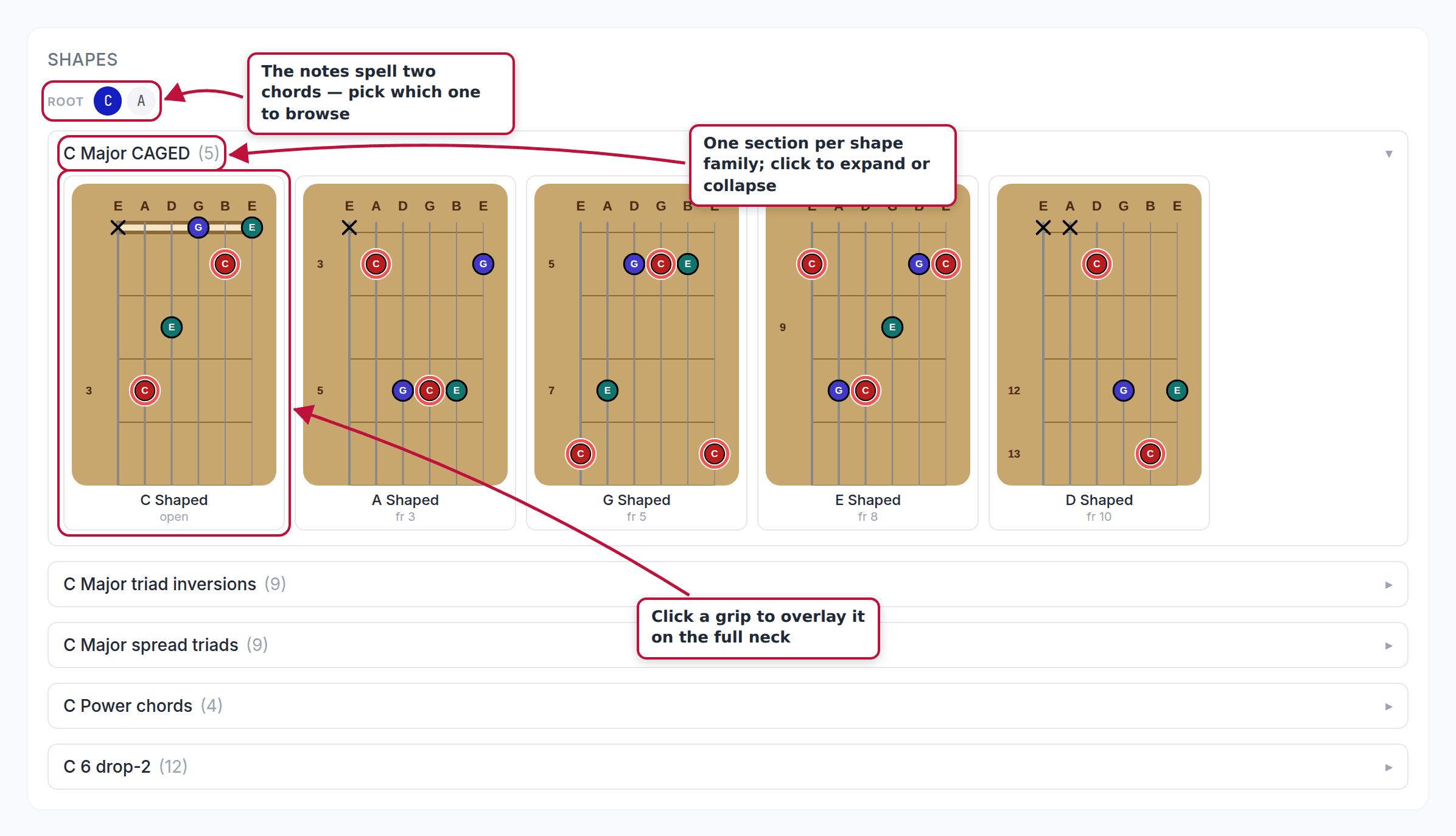
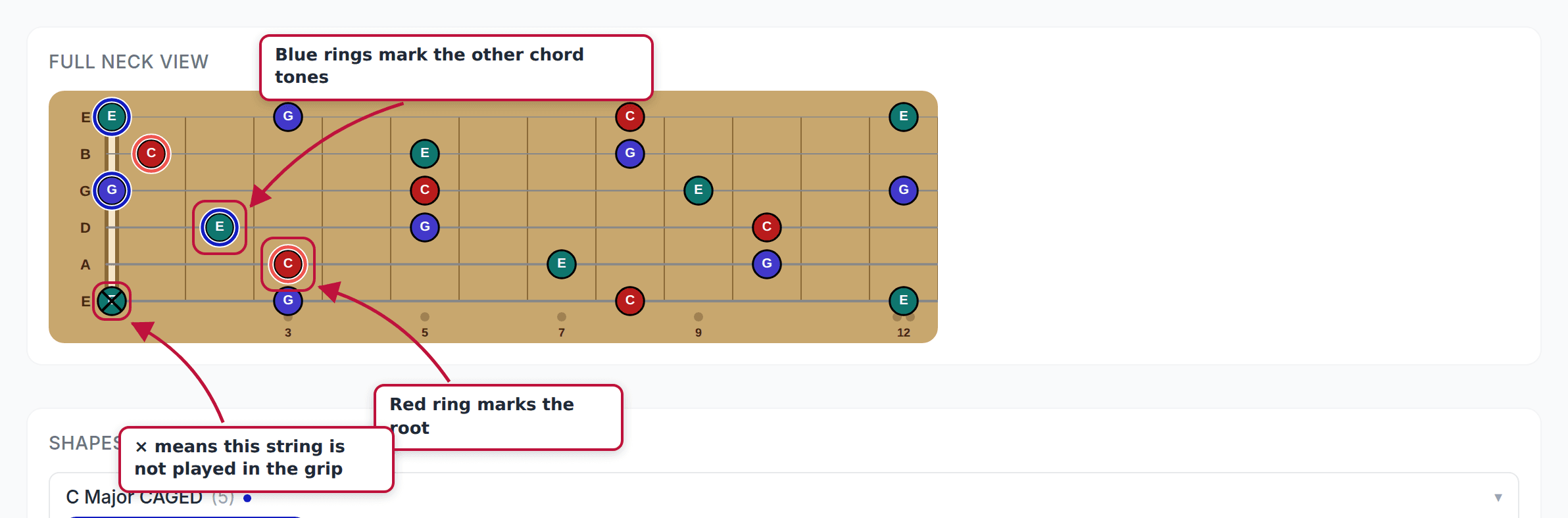
Click a diagram to overlay that grip on the full neck; click it again (or Clear shape) to take it off. The overlay draws rings around the dots: red for the root, blue for the other chord tones. Strings the grip doesn’t use get an × at the nut, just like a chord chart.
When your selection contains a full pentatonic or blues scale, a Scale boxes tab appears next to Chord shapes. Box tiles are multi-select: tick several at once (each gets its own color) to see how the positions tile the neck and where they overlap.
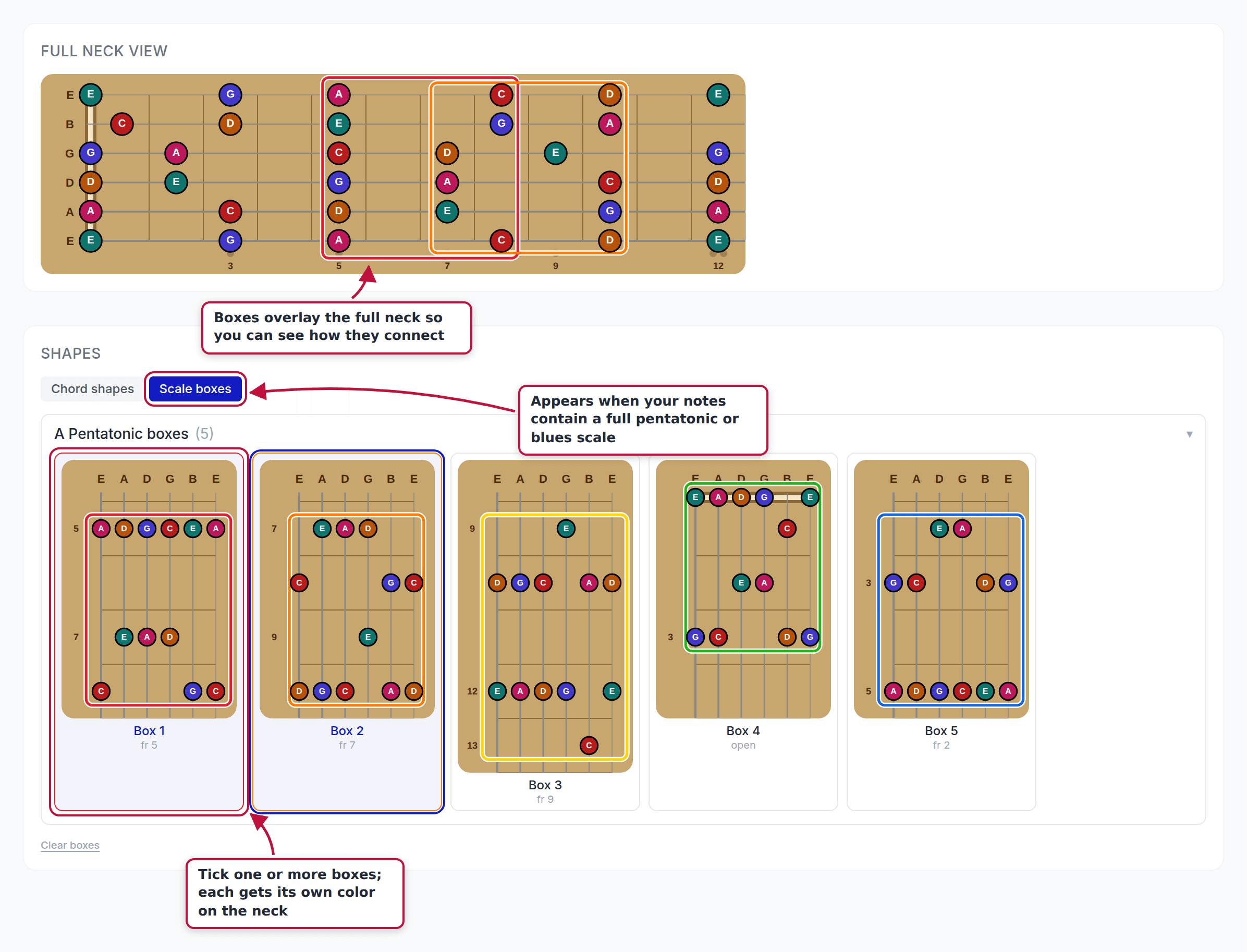
The Shapes button in the top bar carries the same catalog in a compact menu — handy when the list below the neck has scrolled out of view.
Display options
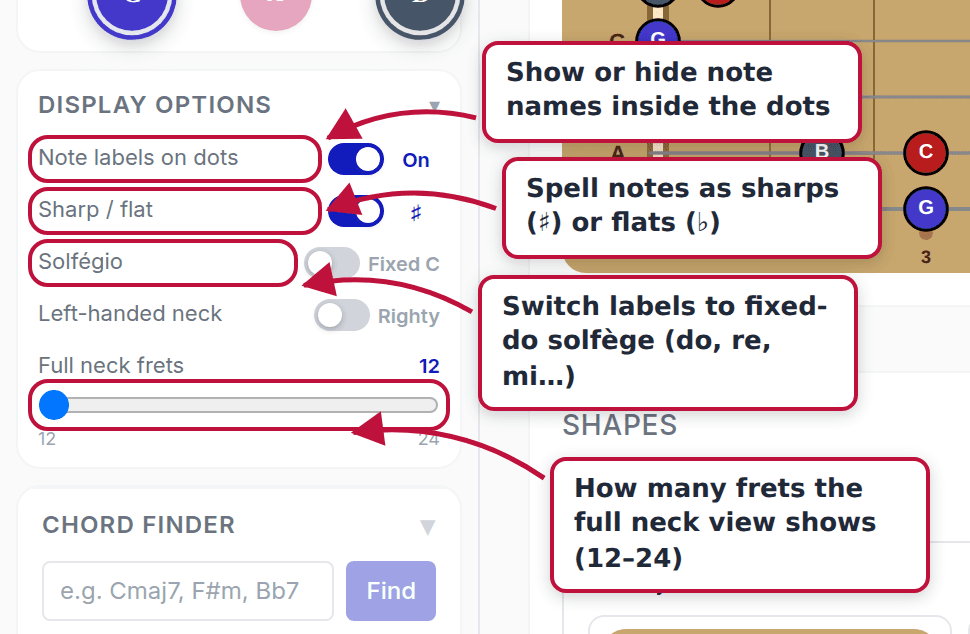
Expand Display Options in the sidebar to control how notes are drawn:
- Note labels on dots: show or hide the note names inside the colored dots.
- Sharp / flat: spell the five accidentals as sharps (C♯, F♯…) or flats (D♭, G♭…).
- Solfégio: switch every label to fixed-do solfège (do, re, mi…) instead of letter names.
- Full neck frets: how many frets the full neck view spans, from 12 up to 24.
The chord finder
Know the chord name but not the notes? Type a chord symbol such as Cmaj7, F#m7b5, Bb7, or even a slash chord like Dm/F, and press Find. The finder names the chord, lists its notes, and puts them straight onto the fretboard. If you’d rather not type symbols, build the chord from the Root / Quality / Extension dropdowns and press Show chord.
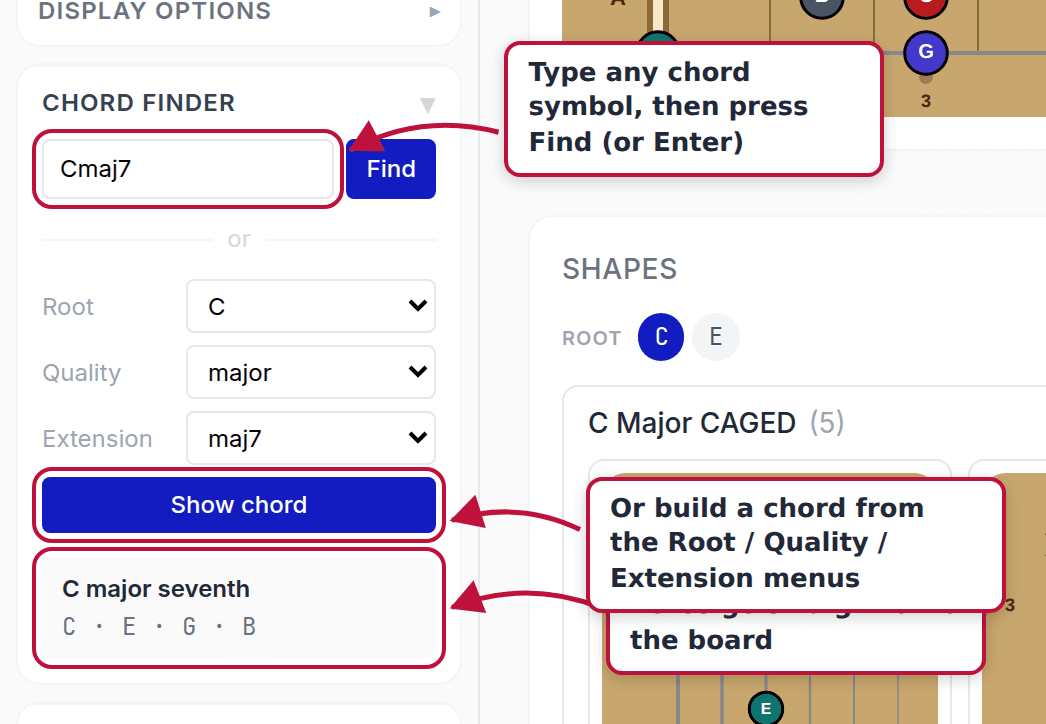
Picking notes by hand afterwards clears the chord result: the finder describes a specific chord, and once you change the notes it’s your board again.
The theory panel
The theory panel answers “what am I looking at?” and updates as you select notes:
- 1 note: its name and enharmonic alias.
- 2 notes: the interval between them.
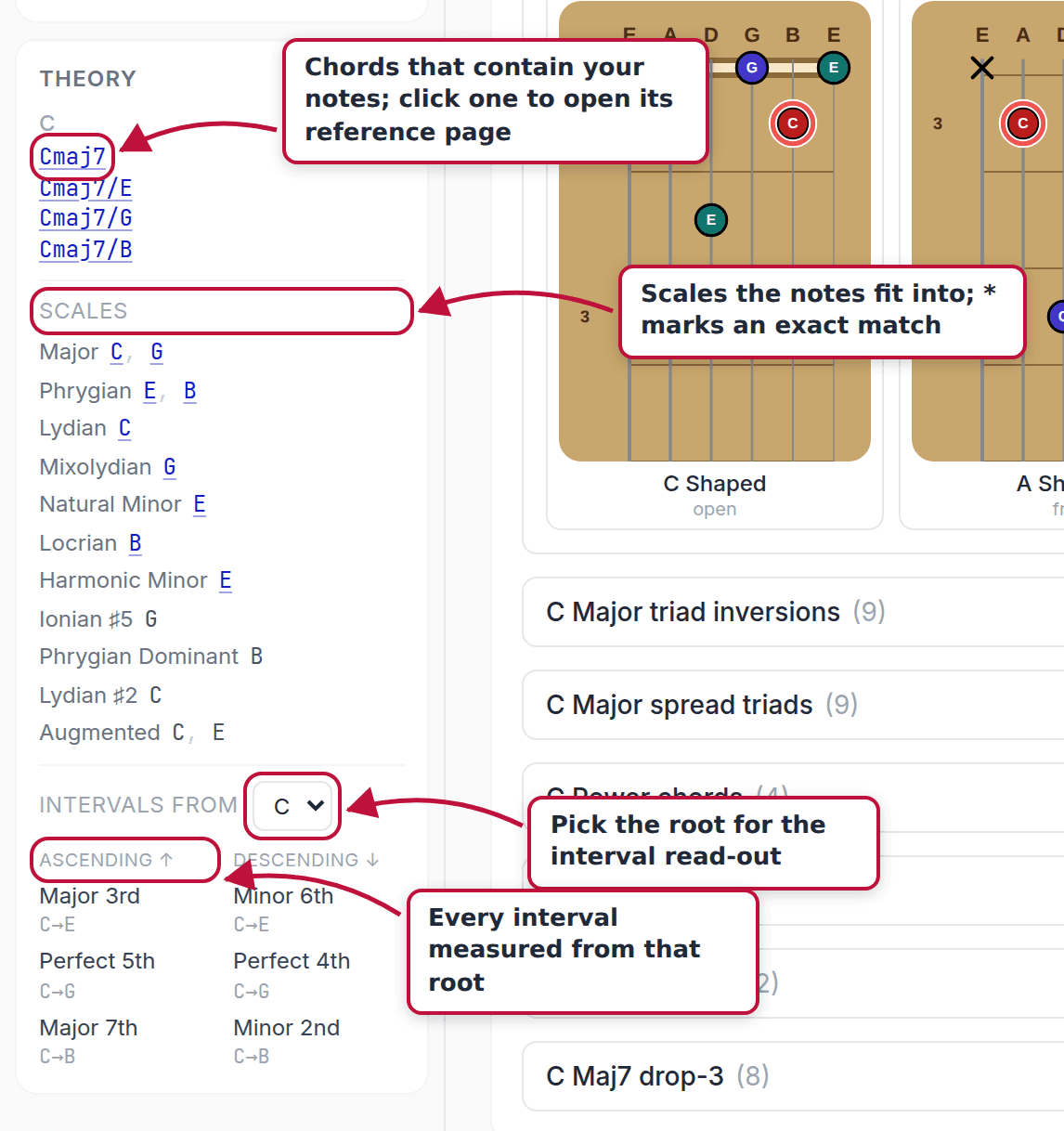
- 3+ notes: every chord those notes spell, grouped by root. Each chord links to its reference page.
- 4+ notes: scales that contain your notes, with exact matches marked by an asterisk.
With two or more notes selected you also get a root-relative interval read-out: pick any selected note as the root and see every other note measured from it, ascending and descending.
Searching chords & scales
The search box in the top bar covers the named chord and scale pages on the site (around 1,400 entries). Type a chord symbol (Cmaj7, Bb7) or a scale name (a dorian, g minor pentatonic). Each result offers two actions: click the name to open its reference page, or click visualize ↗ to load its notes onto the board you’re already looking at.

Exporting an image
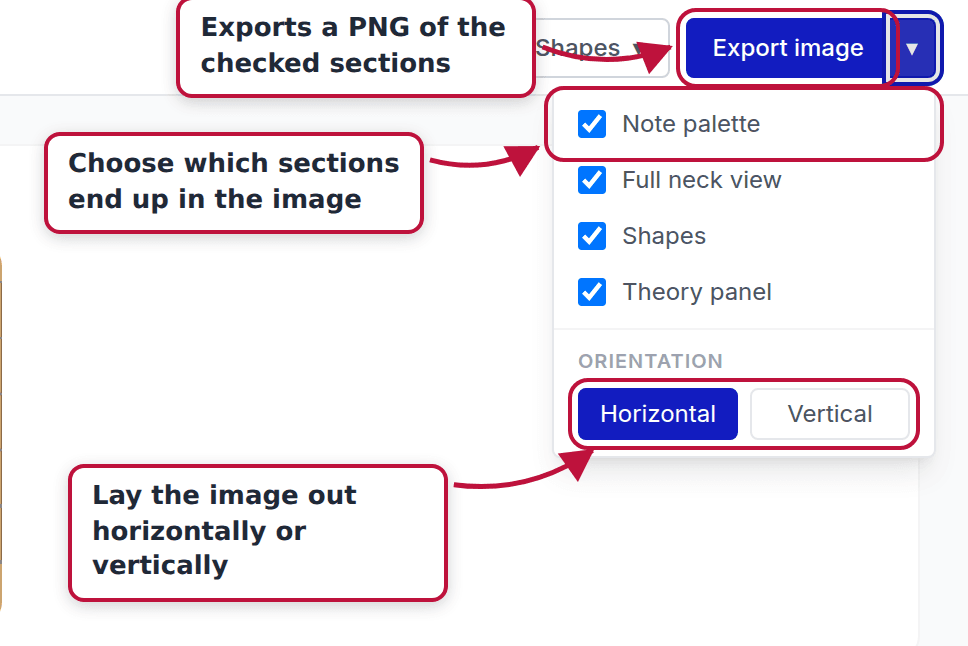
The Export image button downloads the current board as a PNG, useful for lesson handouts, practice notes, or sharing a voicing. The arrow next to the button opens the options: choose which sections to include (note palette, full neck, shapes, theory panel) and whether the layout runs horizontally or vertically. The shapes section exports whichever shape families you have expanded in the list, one labeled block per family. The image renders at 2× resolution with a clean white background.
Sharing your board
Everything you set up (selected notes, sharp/flat spelling, solfège, fret count, chord finder input) is encoded in the page URL as you work. To share a board or bookmark it for later, just copy the address from your browser; opening that link restores the exact same board. Your latest board is also remembered locally in your browser, so returning to /visualize picks up where you left off.
Still stuck?
If something doesn’t work the way this guide says, or there’s a feature you wish existed, contact us. We read everything.